
Overview
BeCLM allows you to integrate your data in 4 different ways:
-
Manual Screening → it is possible to import natural or legal person, one by one, manually from a dedicated screen
-
Manual Import → Import of multiple natural and/or legal persons at once via BeCLM
-
SFTP → Import of multiple natural and/or legal persons at once without logging into BeCLM
-
API → Import of natural or legal person via API
Once your data has been integrated, a risk score will be generated and a record of the process will be kept (via the audit trail and PCR). This risk score is based on the configuration defined during onboarding.
Quick Navigation
-
Manual Screening: Click on AF or PEP → Manual Screening → Enter your data flow → Launch your screening.
-
Manual Import: Click on AF or PEP → Import a File → Select the data flow and related mapping (configured during your onboarding) → Upload a CSV file.
-
SFTP File: You can automate the deposit of your files to the SFTP folder or upload them manually via FileZilla.
-
Via API: Create an API user in BeCLM → Log into BeCLM with your API token → Connect your system to ours.
Detailed Process
Client manual search
Select the desired module: AF or PEP.
On the left side, you can click on the Manual Screening menu.
Manual screening allows you to create your client (whether a natural or legal entity) and check if it presents a potential risk.
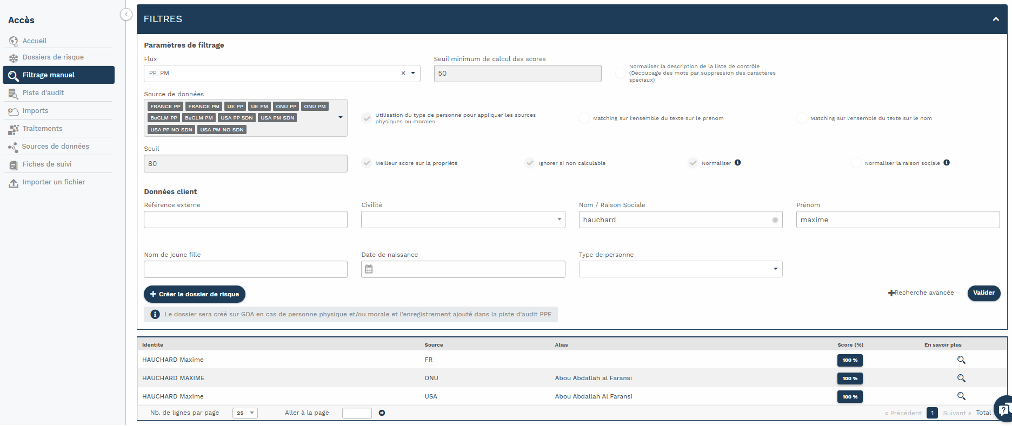
Depending on the filter criteria and the information you enter (such as name, first name and/or date of birth, etc) some potential risks may be highlighted.
If you’re checking a legal entity, the company name is the only information available to detect potential risk.
Two possible outcomes:
-
If the screening shows no risk, the button “Save search to audit trail” will appear, enabling you to keep a record of your screening.
-
If a risk is identified, the button “Create a risk folder” will appear, enabling you to initiate the creation of a risk file.

The page refreshes and displays fields for you to fill in. These are details you can enter about your client.
At this stage, a unique reference for your client will be defined and cannot be changed later. By default, BeCLM will suggest a reference, which you may replace with your internal client number.
CAUTION! This reference is the only way to access your audit trails.
You can now characterise your risk file.
Manual file import
During your onboarding, we will create a template file with you. This template is the only one that will be accepted for imports into BeCLM.
To perform the import, go to the latest menu option in AF/PEP. Click on 'Import a file' and select the aimed flow. A second field will then appear, allowing you to select your custom file mapping.
A summary will then be displayed showing the configuration of your flow (how it will detect potential risk in your file). At the bottom of the page, click on “Import a CSV or XLSX file,” and select the file to upload.
We recommend importing a file in CSV UTF-8 format, as this format ensures you won’t encounter any issues with BeCLM.
Now all that’s left is to wait!
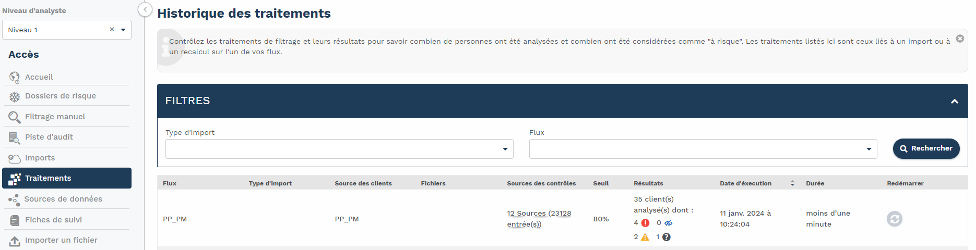
You can monitor whether the import and processing tasks using the 2 menus available in AF/PEP:
-
“Imports” → This shows the history of the risk folders that you have uploaded to BeCLM.
-
“Processing” → This menu shows a summary of the screening results.
Here is a list of the key information you will find:-
The import type (stock, new cases or claims)
-
The number of clients analysed, with a colour code:
-
Clients with risk folders that have already been characterised as 'Match'
-
Clients with risk folders already characterised as 'No match'
-
Clients with uncharacterised risk folders on status 'Potential risk'.
-
Clients with risk folders under analysis on status "Unknown"
-
-
The processing date
-
The processing duration
-
The Processing tab enables you to see how many cases have been identified and require review. You should then return to your AF/PEP counters and process any newly created folders.
SFTP
SFTP (or Secure File Transfer Protocol) is the method used by BeCLM to securely manage file transfers.
With this method, we can automate the import of your risk folders, so you no longer need to manually upload them from BeCLM.
Additionally, if needed, we can add an RSA key (encryption algorithm) and/or IP restriction for file uploads.
If you wish to adjust these settings, our support team is available to assist you.
API
An API (Application Programming Interface) is a software interface that allows to “connect” one of your management systems with BeCLM. This connection enables data exchange between the two systems.
APIs offer a wide range of possibilities, such as:
-
Data portability
-
Integration of features from one platform to another
-
Transmission of control results from our algorithm
The different API calls we provide are available on the page: APIs
To take advantage of this option, feel free to contact our sales team.