
Overview
AF (Asset Freezing) → Asset freezing refers to the blocking of the bank accounts and other financial assets of individuals listed in the legal acts of a country or an international organisation...
PEP (Politically Exposed Person) → A PEP is someone who holds (or has held) a high-level public position or is closely associated with such a person.
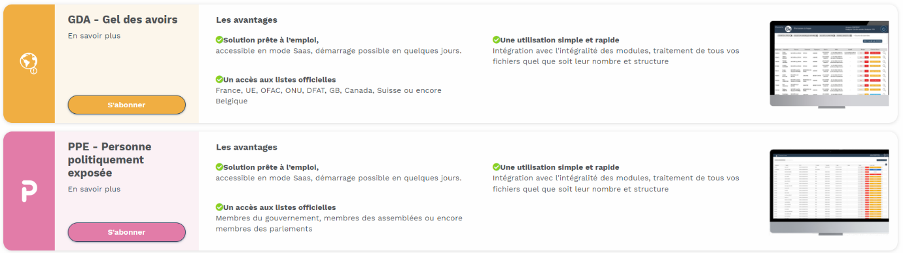
Our AF and PEP modules enable you to identify any current or prospective clients who may pose an asset freezing risk, and/or who can be identified as Politically Exposed Persons. This check is performed using lists that we provide free of charge as part of the BeCLM solution. These lists can be tailored to your requirements.
You will easily find the risk folder that you need to process to carry out your activities.
Quick Navigation
To access the AF module → Click on the orange icon at the top of the page to access the module.
To access the PEP module → Click on the pink icon at the top of the page to access the module.

Detailed Process
Both modules have an identical layout and functionality but produce different results as the control sources differ. Once you have clicked on the desired module, you are automatically taken to its home screen:
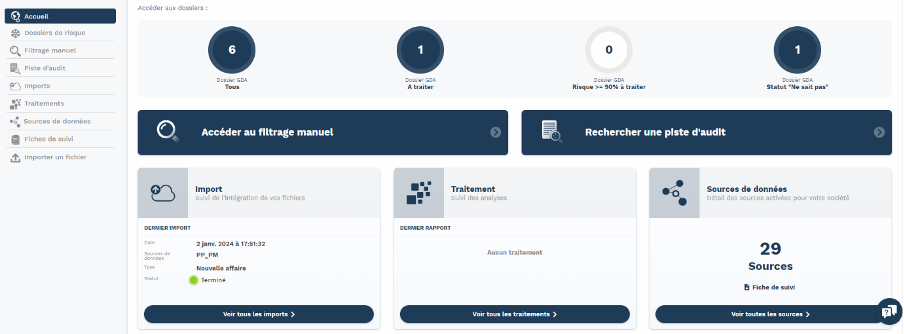
This is a summary tab of all the available menus in AF and PEP.
The 4 circles/counters at the top of the page list the risk folders you have processed and those that has to be processed. By clicking on one of the counters, you can access the corresponding folders.
From left to right:
-
1st counter → Total number of all risk folders, regardless of status.
-
2nd counter → All folders that need to be processed.
-
3rd counter → Only folders with a risk score of 90% or higher, which must be prioritized.
-
4th counter → Risk folders marked as "Unknown".
The "Unknown" status is used for folders that are still under review, for which you are awaiting additional information.
Example: awaiting a photocopy of an ID card.
The blue rectangles provide access to the Manual Screening or Audit Trail menus.

At the bottom of the page, 3 squares lead to the following menus:
-
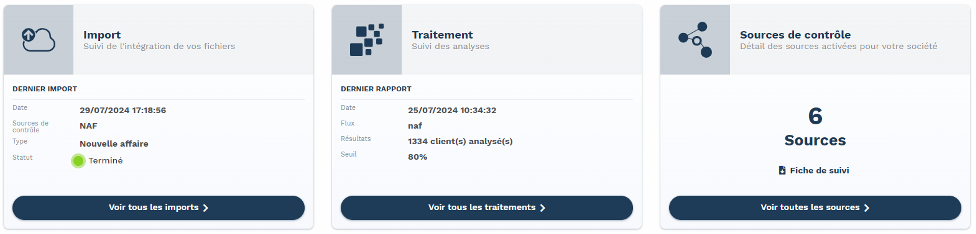
Import: You can view the most recent file import to your space. Click on "View all imports" to access the full import history.
-
Processing: Displays the most recent processing activity. Click on "View all processing" to access the full history.
-
Data Sources: Allows you to see the number of screening sources available in your module (AF or PEP). Click on "View all data sources" to see all available data sources, whether used in your configuration or not.
Using the Modules
To complement this overview, here are some articles that will explain how to use the AF and PEP modules and provide useful information.